
Troubleshooting
IPTV Buffering or Black Screen: A Diagnostic Guide
Diagnose IPTV buffering, freezing, login errors, and black screens by separating device, app, network, account, and source problems.
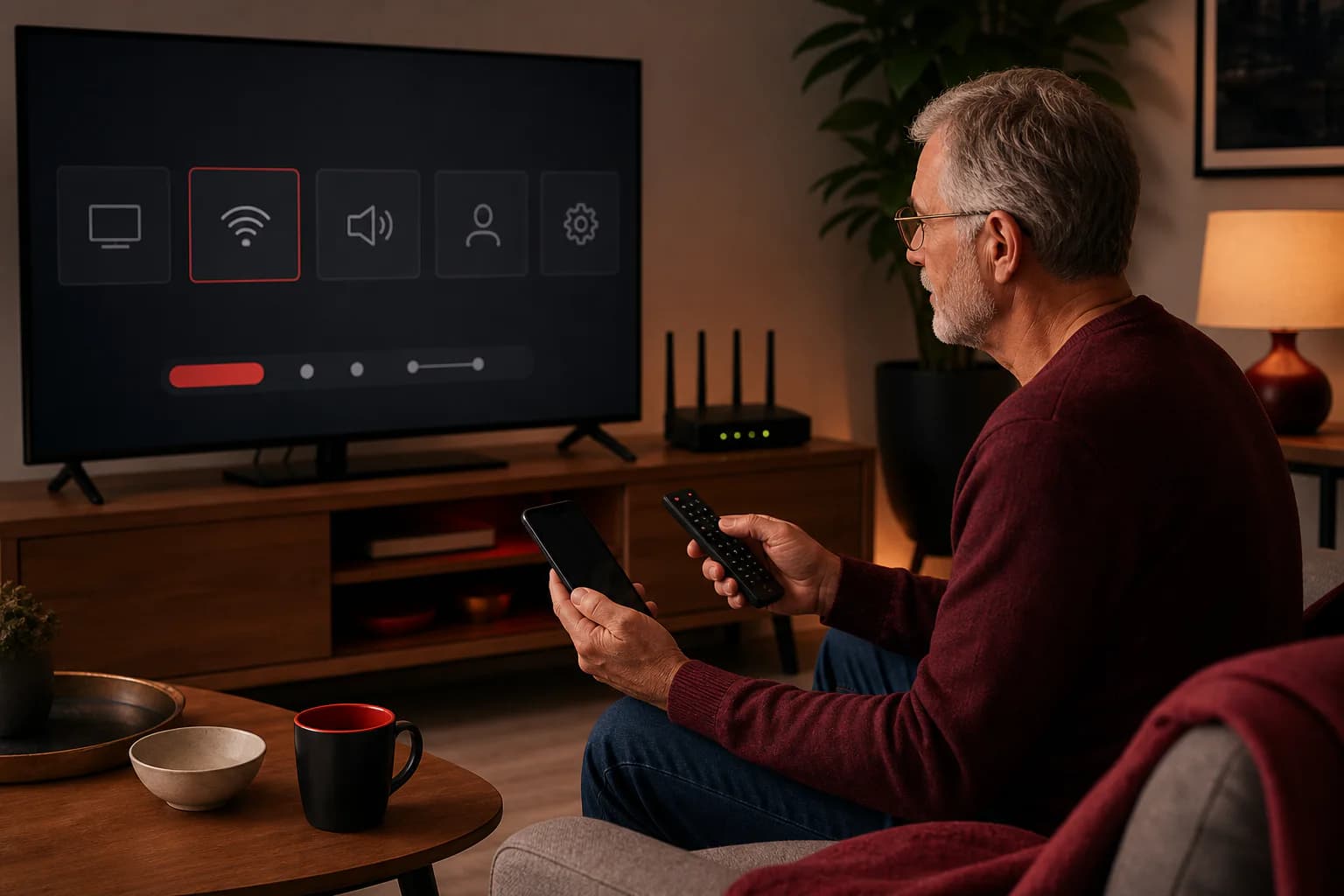
Quick answer
What matters most
- First decide whether the failure affects one item, one category, one device, or everything.
- Change one variable at a time and record the result.
- A precise report with time, device, app, network, and error is more useful than repeated reinstalls.
Decision table
One item fails
Check another item in the same category; the source may be temporarily unavailable.
Everything buffers
Test network stability, device load, account status, and another supported player.
Black screen with audio
Check decoder, display mode, app update, and device compatibility.
Start by defining the scope
Open another item in the same category, then a different category. Test the same account on another authorized device or connection if the plan permits it. This establishes whether the failure is isolated or system-wide.
Write down when the problem started, whether login succeeds, whether audio plays, and the exact message. A black screen, spinning buffer, frozen picture, and authentication error have different likely causes. Avoid changing the player, router, and credentials at the same time because you will not know which action mattered.
Perform the low-risk reset sequence
Exit the player fully, restart the device, and restart the router. Wait for the connection to recover before reopening the app. Stop large downloads and close other streaming applications. Check that the device date and time are correct.
Then confirm the app and operating system are current and that the device has free storage. Do not clear application data unless you have safely stored the login information; clearing data can remove settings, favourites, and credentials.
- Restart player, device, and router in that order.
- Check storage, updates, date, and time.
- Pause other heavy network use.
- Retest before making another change.
Test stability, not only headline speed
A speed test is useful, but brief high speed does not rule out packet loss, Wi-Fi interference, or congestion. Test from the viewing device location and repeat at the time the problem normally occurs. Compare 5 GHz, 2.4 GHz, and Ethernet where supported.
If every streaming app struggles, the home network or ISP path is a stronger suspect. If only one player struggles, check its decoder settings and updates. If only one source fails while others work, report that item rather than rebuilding the entire setup.
Diagnose a black screen
A black screen with sound can point to a video decoder, resolution, HDR, or display compatibility issue. Try the player's supported hardware or software decoding option, return the device display setting to automatic, and update the player. Record which setting changed the result.
A black screen without sound may indicate an unavailable source, failed login, expired account, blocked connection, or player failure. Test another item and verify account status before resetting credentials. Never publish account details in a public troubleshooting post.
Diagnose repeated buffering and freezing
If buffering appears during busy household hours, check other devices using the connection and compare Ethernet. Reduce unnecessary background transfers. If the player offers a reasonable buffer setting, adjust it gradually; an extreme buffer can make channel changes slow without fixing an unstable path.
If the issue follows the account across several devices and stable connections, contact service support. If it follows only one device, focus on that device and app. If it follows the home network but works elsewhere, focus on router placement, Wi-Fi congestion, DNS or ISP support as appropriate.
Send support a useful diagnostic report
Include the plan identifier without exposing credentials, device model, operating system, player and version, connection type, city or region if relevant, exact time and time zone, affected category, visible error, and the troubleshooting completed. A short screen recording can help if it does not expose private data.
Ask support whether the account is active and whether there is a known issue. Avoid accepting impossible guarantees about permanent stability. Streaming performance can depend on the source, app, device, network, region, maintenance, and peak demand.
Useful next steps
Continue with the page that matches your decision
FAQ
Questions about IPTV buffering
Why does IPTV buffer even with fast internet?
High headline speed can coexist with Wi-Fi interference, packet loss, congestion, device limits, app problems, or source-side issues.
Why is the screen black but audio works?
The player decoder, display resolution, HDR setting, app version, or device compatibility may be involved.
Should I reinstall the IPTV app first?
Usually start with restart, storage, updates, network comparison, and account status. Reinstall only after saving the credentials and settings you need.